1. Előkészület: hitelesítő alkalmazás letöltése
A rendszer által javasolt, általánosan használt hitelesítő alkalmazások közé tartozik például a Google Authenticator - amely Androidon és iOS-en is elérhető.
Alternatív lehetőség a Duo Mobile (vagy bármilyen más, TOTP-kompatibilis authentikátor).
-
Google Authenticator letöltés:
-
Android: Google Play
-
iOS: App Store
-
Ajánlás: a letöltött alkalmazást telepítsd és indítsd el még azelőtt, hogy elindítanád a 2FA aktiválását a portálon - így készen áll a QR-kód beolvasására.
2. Navigáció a portálon - hol kapod meg a beállítást (lépésről lépésre)
-
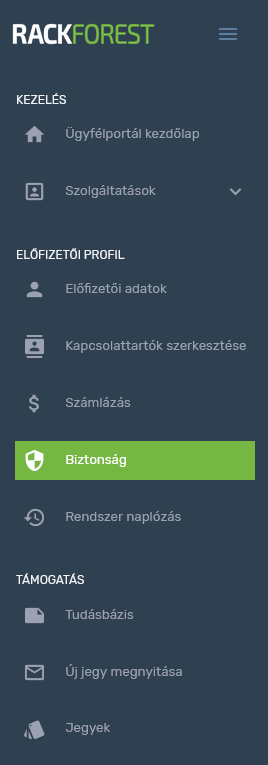
Jelentkezz be az ügyfélportálra.
-
A fő menüben az „Előfizetői profil” alatt kattints a „Biztonság” gombra.
-
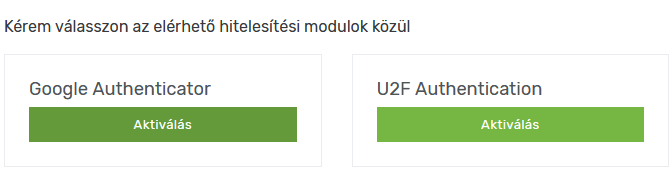
A megjelenő oldalon válaszd a „Többlépcsős hitelesítés” opciót.

-
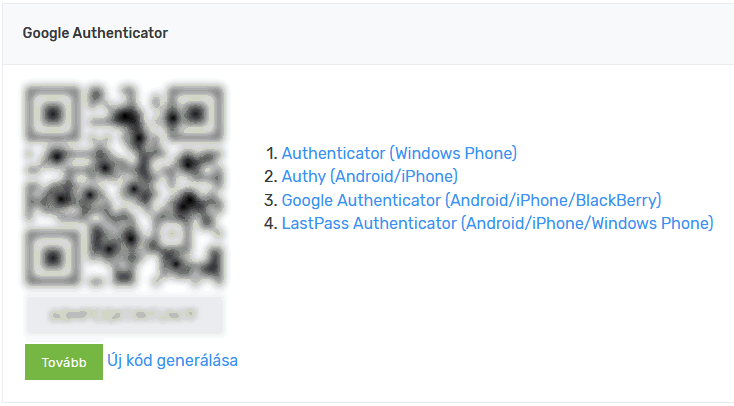
Indítsd el a regisztrációt az „Aktiválás” gombra kattintva. Ekkor meg fog jelenni:
-
egy titkos kulcs (karaktersor),
-
egy QR-kód,
-
valamint linkek a javasolt hitelesítő alkalmazásokhoz.
-
- Az Hitelesítő alkalmazás konfigurálását (alább a 3. pont) követően kattintson a „Tovább” gombra, és kövesse az ott megjelenő utasításokat.
3. Hitelesítő alkalmazás konfigurálása (QR-kód beolvasása)
-
Nyisd meg a mobilon telepített authentikátor appot.
-
Válaszd a „Fiók hozzáadása” / „Add account” / „+” opciót. (App-függő.)
-
Válaszd a „QR-kód beolvasása” lehetőséget, és irányítsd a kamerát a portálon generált QR-kódra.
-
Ha valamiért nem működik a QR-kód beolvasás, a titkos kulcsot manuálisan is be lehet írni az alkalmazásba. (Sok hitelesítő alkalmazás támogatja a kézi kódbevitelt.)
-
A beolvasás / kézi hozzáadás után az alkalmazás mostantól generálni fog időalapú, 6-jegyű kódokat a fiókhoz.
Ezután csak akkor mentsd el a portálon a beállításokat, ha biztos vagy benne, hogy az alkalmazásban már látod a fiók-entryt és kódot! Ellenkező esetben később nem tudsz belépni.
4. Belépés - hogyan működik 2FA aktiválás után
-
Amikor legközelebb belépsz a portálra: add meg a szokásos jelszót, majd - a rendszer kérésére - az alkalmazás által generált 6 számjegyű biztonsági kódot (OTP).
-
A kódok időalapúak, és jellemzően kb. 60 másodpercig érvényesek.
-
Ha a kód lejár, az alkalmazás automatikusan generál egy újat - használd az újat.
5. Hogyan ellenőrizhető, hogy a 2FA valóban aktív (be van kapcsolva)?
A 2FA sikeres bekapcsolását általában az alábbi jelekből lehet leellenőrizni:
-
Az előfizetői profil / biztonsági beállítások között a „Kétlépcsős hitelesítés” státusza aktív / engedélyezett.
-
A hitelesítő alkalmazásban szerepel az adott fiók (account) entry - tehát van konfigurálva kódgenerálás.
-
A következő bejelentkezésnél a rendszer kérni fogja a jelszó mellett az OTP-kódot (tehát jelszó + kód). Ha ez történik - 2FA működik.
Ajánlatos az első sikeres belépés után - amikor a kódot beírtad - azonnal kilépni és újra belépni, hogy teszteld: megfelelően működik-e a 2FA rendszer.
6. Egyéb információk, javaslatok
-
Figyelmeztetés a kulcs biztonságára: a QR-kód / titkos kulcsot ne fotózd le ne oszd meg - mert akihez eljut, be tud lépni a fiókodba.
-
Mentés / biztonsági másolat lehetőség: ha az alkalmazás támogatja (pl. Duo vagy jelszókezelő), érdemes biztonsági mentést készíteni - így telefoncsere esetén nem veszik el a 2FA beállítás. Egyes alkalmazásoknál ez különösen ajánlott.
-
Rendszeres ellenőrzés: időnként célszerű ellenőrizni, hogy a 2FA beállítás még aktív-e, és az alkalmazás friss - elkerülendő, hogy később ne lehessen belépni a kód miatt.
-
Ha bármilyen okból kifolyólag nem sikerül belépni: ha nem sikerül a felületünkre történő belépés, vagy eltűnt a telefon, kérünk jelezd részünkre a kapcsolattartói e-mail címedről az [email protected] címre küldött e-mailben!